
Android environment setup
Midscene connects to and controls Android devices over adb, supporting UI automation across native apps, hybrid apps, and system interfaces.
This guide walks you through setting up the Android environment required by Midscene Test, the JavaScript SDK, and Playground. You will first connect your device over adb, and then use Playground to verify screen capture, touch input, and model calls.
Connect the device through adb
Midscene uses adb on your computer to communicate with the target Android device over either USB or wireless adb. If adb is already installed and your device is connected, skip directly to Verify the device connection.
1. Install adb
- Install
adbvia Android Studio or the standalone Android command-line tools. - Run the following command to verify the installation:
Output similar to the following confirms a working installation:
- Configure the
ANDROID_HOMEenvironment variable as described in Android environment variables, then check that it takes effect:
The output should point to your local Android SDK directory, for example:
2. Enable debugging and connect the device
The steps below use a USB connection as an example. If your device is already connected over wireless adb, you can keep using that connection.
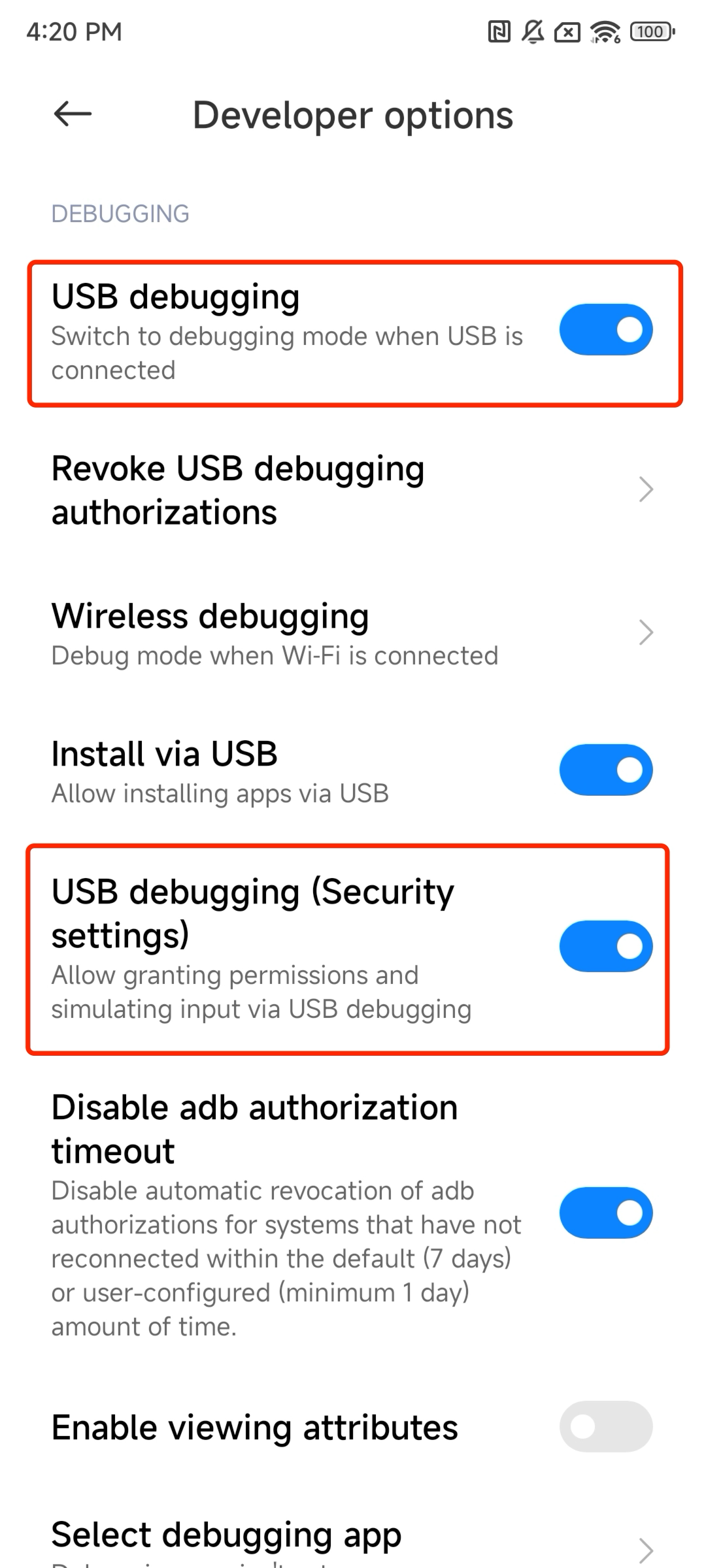
- In your phone's Developer options, enable USB debugging (and USB debugging (Security settings) if available, so Midscene can inject touch events).
- Connect the phone to your computer using a USB cable that supports data transfer.
- Keep the phone unlocked and accept the Allow USB debugging prompt on the screen.
3. Verify the device connection
Run the following command to check the connection status:
When the device status shows device, the connection is ready:
If multiple devices are connected, note the device ID in the first column (such as s4ey59 above) so you can select the target device in Playground or your project configuration.
If the target device does not appear with the device status, check the following:
- Empty list: For USB, check the data cable (ensure it is not charge-only), USB connection mode, and USB debugging toggle; for wireless
adb, check the network andadb connectstatus. unauthorized: Unlock the phone screen and accept the Allow USB debugging prompt on the device.offline: Reconnect the USB cable or wirelessadbsession, and restartadbif needed. Proceed only after the status showsdevice.
Verify in Playground
With Playground, you can verify screen capture, touch input, and model calls without writing code.
Before starting, prepare your model configuration using a model API key or a ChatGPT subscription.
Launch Playground
Make sure Node.js (^20.19.0 || ^22.12.0 || >=24.0.0) is installed and both node -v and npx --version work in your terminal.
- Start the Android Playground CLI:
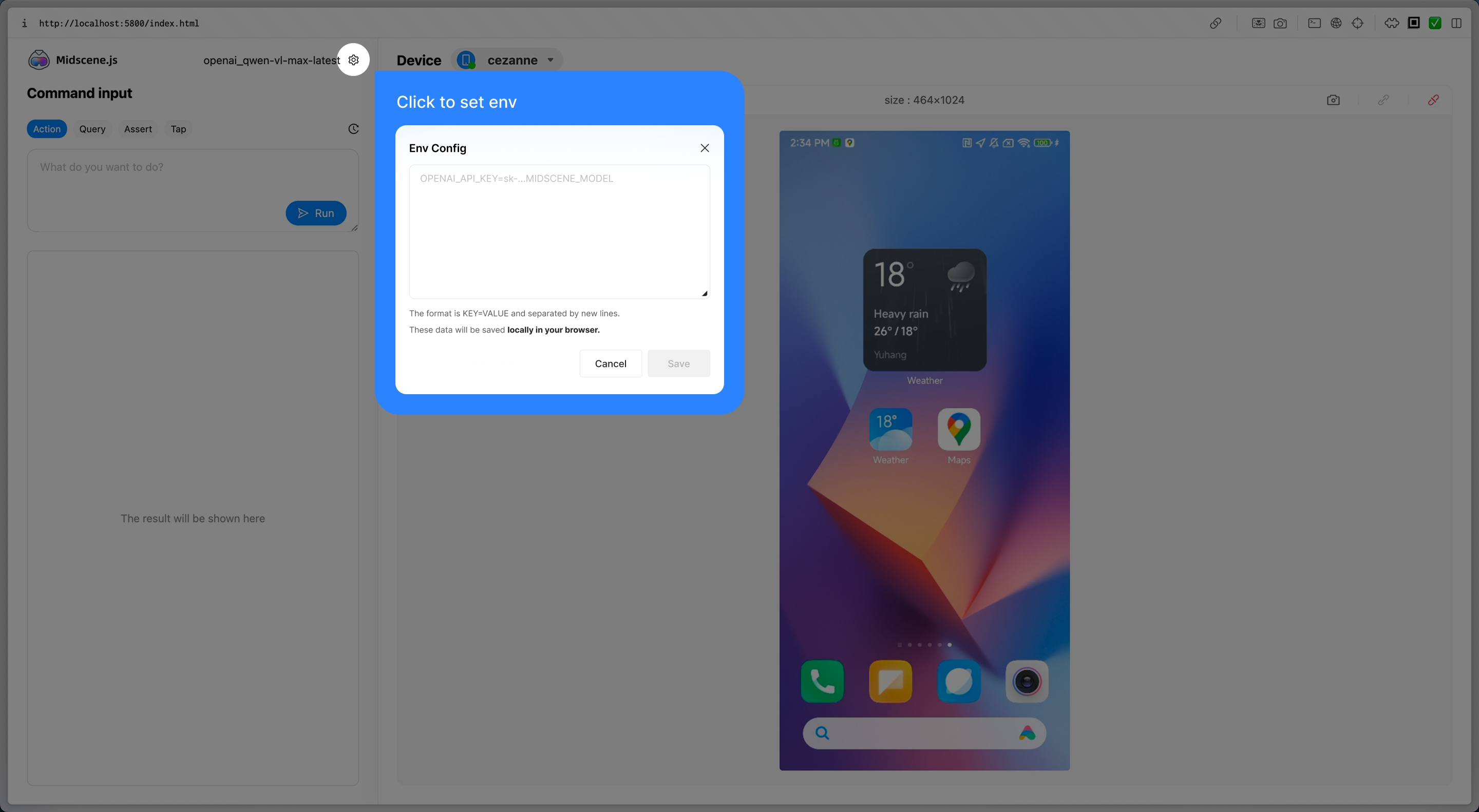
- In the Playground window that opens, click the gear icon in the top-right corner, paste your model configuration, and save.
- If your browser does not open automatically, visit the local Playground URL printed in the terminal, and keep the terminal process running.
- In the connection panel on the left, select your target ADB device and create the Agent (if multiple devices are connected, match the device ID against
adb devices -l). - Confirm that the preview area displays your phone's current screen. If no screen appears, check the
adbconnection and screenshot permissions first.
Run an action and verify the result
On your Android device, open the browser app, complete any first-run prompts, and navigate to TodoMVC. Keep the device unlocked with the browser in the foreground.
- In Playground, select
aiAct, enter the following instruction, and run it:
- Once the completed todo item appears on the page, switch to
aiAssert, enter the following assertion, and run it:
- Confirm that the assertion passes and inspect the step-by-step screenshots in the results panel. At this point, device connectivity, screen capture, touch input, and model calls have all been verified together.
If execution fails, check the failed step and error message: for missing screenshots or unresponsive touch input, see the FAQ below; for model request errors, see Verify model connectivity.
Clean up the example data
After verification, delete the "Try Midscene" item in TodoMVC. If you plan to run the Midscene Test Android example next, switch to the All filter and make sure the list is completely empty (including completed items), as the example template checks for an empty list before running and does not overwrite existing items.
See it in action
Prompt: Open the Booking app. Search for a hotel in Tokyo for four adults on Christmas, with a score of 8 or above. (Full report)
Use the device in tests or scripts
Once device connectivity and interactions are verified in Playground, you can integrate the device into your test or script project:
Choose your next step based on how you use Midscene:
- Midscene Test: Continue to Configure the model and runtime environment and run the example (if you have not initialized a project yet, start from Create a project and select Android).
- JavaScript test runner: Continue with Integrate with Vitest.
- Standalone scripts: Follow Write standalone automation scripts and select the Android example.
- Platform SDK reference: See the Android JavaScript SDK for device selection, constructor options, platform-specific methods, and lifecycle management.
FAQ
The device is missing, unauthorized, or offline
Run adb devices -l and follow the troubleshooting steps in Verify the device connection to check the USB cable, debugging authorization, and connection status. Make sure the target device status is device before investigating screenshot or input issues.
Why can't I control the device even though it is connected (INJECT_EVENTS error)?
If tapping or swiping fails with a permission error like the following:
Some Android OEM ROMs (such as Xiaomi / MIUI / HyperOS, vivo, and OPPO) require an additional toggle in Developer options to allow simulated input. Make sure both of the following options are enabled:
- USB debugging
- USB debugging (Security settings) or Disable permission monitoring (if present)
Text input is cleared or disappears after typing
If text is entered properly but disappears when the soft keyboard closes, the input field may be clearing its value in response to the ESC key event sent to dismiss the keyboard. You can customize the keyboard dismissal strategy; see the Android JavaScript SDK guide for options and examples.
English text is altered by the Android input method
Compare the input value recorded in the execution report with the text actually entered into the field. If the value in the report is correct but characters in the input field are reordered, missing, or intercepted by Pinyin composition, check the active input method and autocorrect settings on the device. See the Android JavaScript SDK guide for details on input channels.
Screenshots of secure pages (such as password inputs) are black
First switch to a regular page and check whether screenshots work normally. If only password screens or sensitive pages appear black, the app likely enables system screenshot protection (FLAG_SECURE) rather than adb being disconnected. See the Android JavaScript SDK guide for screenshot mechanisms and limitations.
Model calls fail
Check the error message of the failed step and verify the model configuration in Playground settings or your project's .env file. Because device connectivity and model requests are independent, follow Verify model connectivity to troubleshoot API key, endpoint, or network issues. Note that CLI and project checks read your project's environment variables rather than browser-stored Playground settings.
Advanced connections and debugging
Why does scrcpy fall back to ADB screenshots?
To prevent the AI model from acting on stale frames, Midscene strictly validates scrcpy frame timestamps: any frame that cannot be proven to have been captured after the most recent completed action—or that exceeds the maximum frame age limit—is rejected. If the active scrcpy stream fails to deliver a fresh frame in time, Midscene automatically restarts scrcpy once, and falls back to adb screenshots only if the restarted stream also fails.
This commonly occurs when an Android hardware encoder pauses frame output on a completely static screen, or during stream startup and transient USB transport hiccups. Note that a frame-freshness warning alone does not indicate insufficient bandwidth or an excessive video bitrate—do not adjust the video bitrate solely in response to this warning.
How do I configure the scrcpy video bitrate?
See the Android JavaScript SDK guide.
How do I access Android Playground remotely from another machine on the LAN?
By default, both the Playground server and its built-in scrcpy streaming server bind only to 127.0.0.1. To access Android Playground from another computer on your network, explicitly bind both servers to a reachable interface via environment variables (for example, on macOS or Linux):
Then open Playground in a browser using the host machine's LAN IP address (or hostname) and the Playground port printed at startup (note that 0.0.0.0 is a wildcard bind address, not a URL you can open in a browser), and ensure your firewall allows incoming connections on both the Playground and scrcpy ports.
MIDSCENE_SCRCPY_HOST applies to the standalone Android Playground CLI and can also be set to a specific local network IP (such as 192.168.1.100, which the auto-opened local preview page will also use). If you instantiate ScrcpyServer directly in code, pass the host option to its constructor instead.
The scrcpy streaming server does not currently authenticate viewer sessions. Binding it to a network interface exposes device information and live screen streams to any client that can reach the port. Enable remote access only on trusted private networks and restrict access with firewall rules.
How do I use a custom adb path or remote adb server?
See the Android JavaScript SDK guide.