

Provide application knowledge to a GUI Agent
When using a GUI Agent, developers often want to describe a goal and let the Agent handle the actions. But a clear goal does not mean the Agent already has the application knowledge needed to complete it.
This article uses a practical example to explain how to supply relevant application knowledge and express your intent clearly, helping a GUI Agent execute tasks more reliably.
Example: where a GUI Agent can go wrong
Consider this task in the Dongchedi Android app:
Open the price-reduction ranking, filter for new-energy MPVs launched within the past year, set the price range to CNY 100,000–400,000, and verify that the filters take effect.
The prompt is only one sentence, but completing it requires several actions. In practical testing, we observed some potential weak points.
The screenshots below show Dongchedi, a Chinese app. Their interface text has been translated into English using AI to help developers follow the workflow. These are illustrative translations, not screenshots of an official English version. All prices remain in CNY; “k” means thousand and “M” means million.
| Screenshot | Actions and why the model might go wrong |
|---|---|
 | Intent Open the price-reduction ranking. Actions 1. Tap “Rankings” in the shortcut area near the top of the home page. 2. Switch to the “Price reductions” ranking at the top of the Rankings page. Where might the model go wrong? The name “Price reductions” alone may not tell the model that this feature is inside the Rankings page. Some models may look elsewhere for price-reduction features or try searching for the ranking. The missing knowledge is the app's navigation path: first open Rankings from the home page, then switch rankings. |
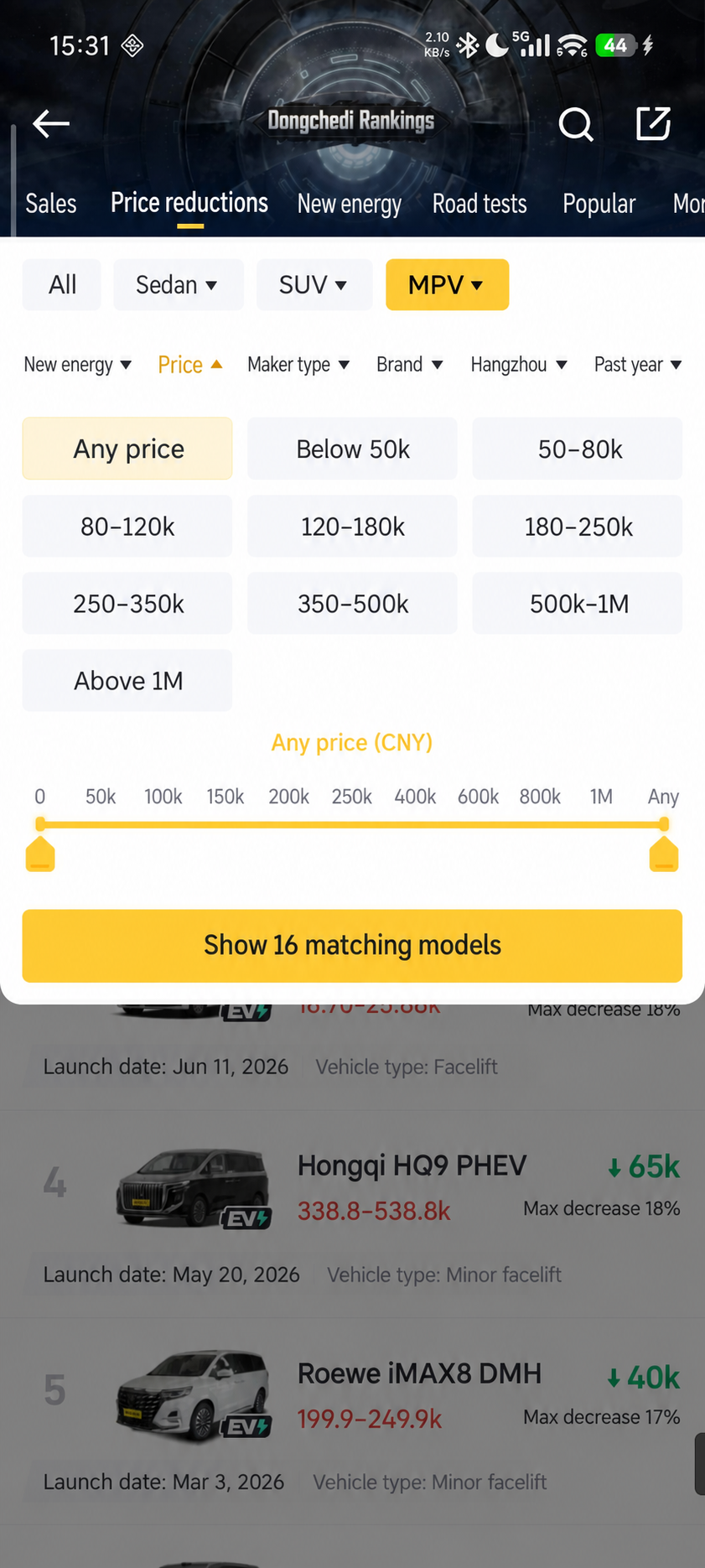 | Intent Set the filters and price range. Actions 1. Open the vehicle-type filter and select “MPV”. 2. Open the launch-date filter and select “Within the past year”. 3. Open the energy-type filter and select “New energy”. 4. Open the price filter panel. 5. Tap the CNY 400,000 tick to set the upper bound. 6. Tap the CNY 100,000 tick to set the lower bound. Where might the model go wrong? The model may try dragging the slider handles to set the range. Inaccurate drags can require repeated adjustments. This component also supports tapping tick marks: when the target value has a tick, tapping it is more efficient and accurate for the model. |
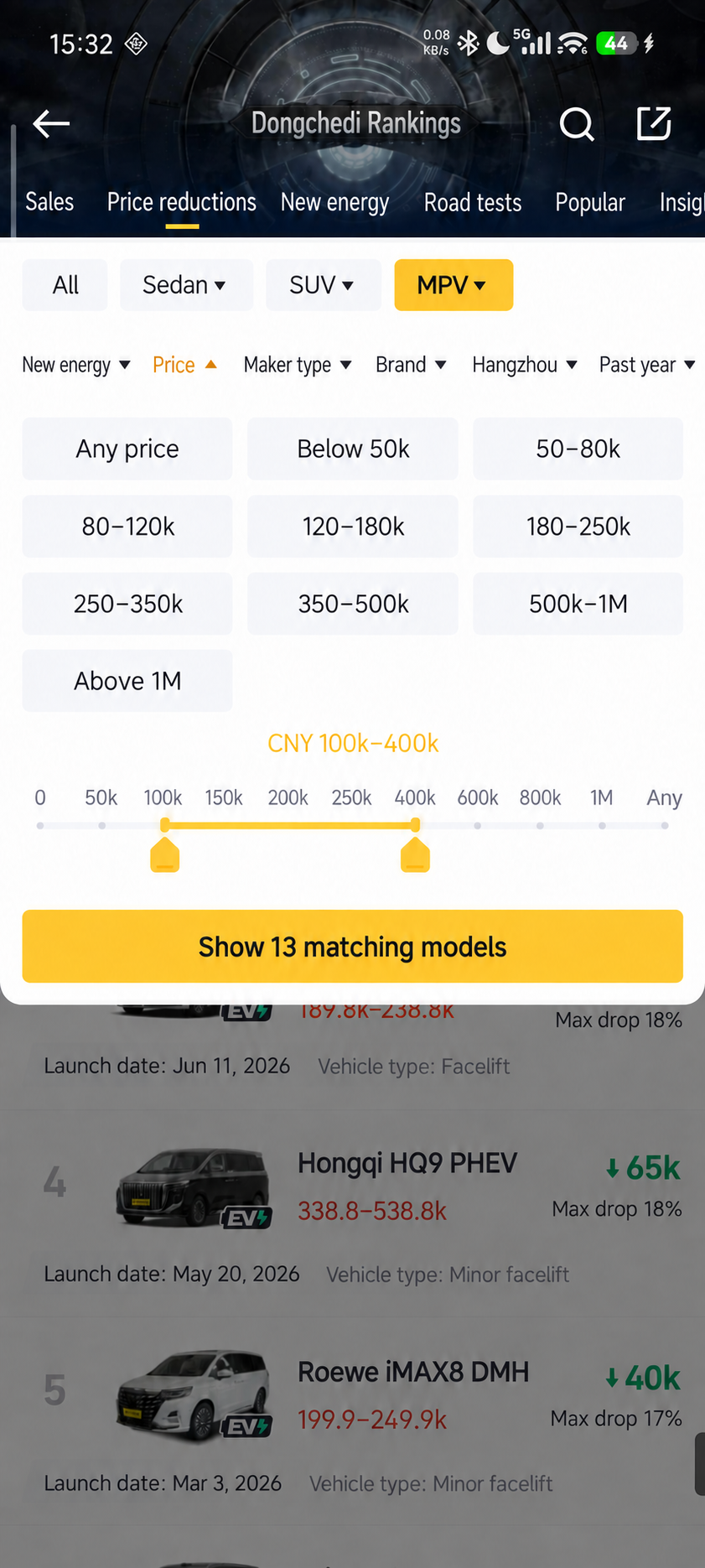 | Intent Confirm and apply the price filter. Actions 1. Read the complete price text in the panel to confirm the CNY 100,000–400,000 range. 2. Tap the yellow result button at the bottom of the panel to apply the filter. Where might the model go wrong? The model may assume that changing the values in the panel has already applied the filter. The selection is still pending, however: the conditions are applied and the list updated only after tapping the yellow result button. This requires knowledge of the component's interaction rules. |
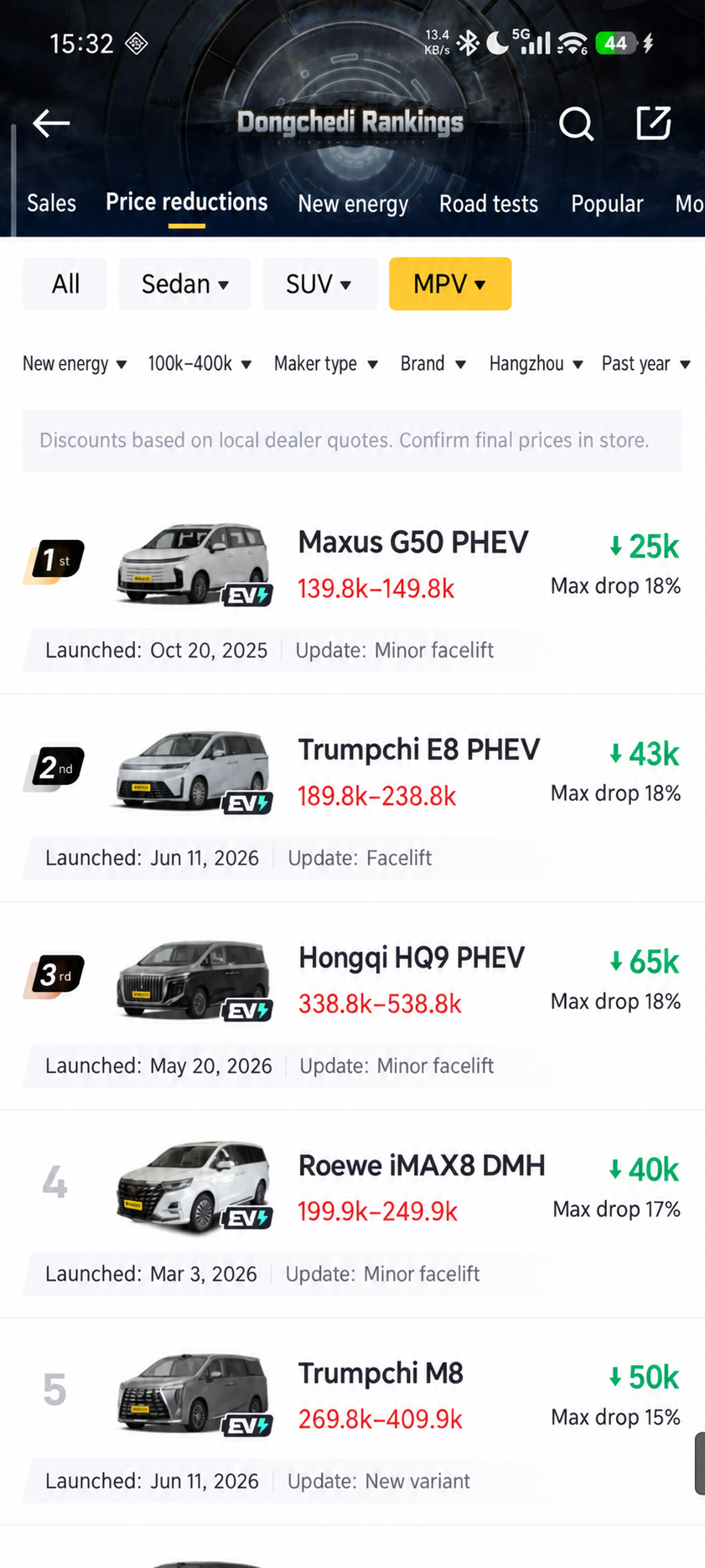 | Intent Verify that the filters took effect. Actions 1. Check that the filter bar displays MPV, within the past year, new energy, and CNY 100,000–400,000. 2. Check that the result list updates correctly. |
Supply the knowledge the GUI Agent needs
In this example, finding the price-reduction ranking, setting prices through tick marks, and confirming the selection all depend on application-specific knowledge. Providing that knowledge can help the GUI Agent complete the task more reliably.
In Midscene, you can supply this information to aiAct through Context, so the Agent can refer to navigation paths, interaction rules, and operating constraints while executing the task.
Common types of missing knowledge
These knowledge gaps usually fall into the following categories:
Add knowledge as needed based on execution
Models differ in how well they understand an application, so the knowledge they need also varies. Start with a clear task goal and expected result, then supply additional application knowledge based on actual execution.
For example, if the Agent can find the price-reduction ranking on its own, there is no need to explain the entry point. If it forgets to confirm after adjusting the price, add the rule that it must tap the result button to apply the change.
As model capabilities improve, some guidance may become unnecessary. Review Context periodically against execution results and remove information the Agent can already work out on its own.
Common pitfalls
Use the following guidance when supplying application knowledge and writing action instructions.
Do not provide only a vague test goal
A prompt such as “test the ranking page” gives no specific goal, expected result, or necessary application knowledge. The Agent has to guess what to do and how to evaluate the result.
Do not describe actions with fixed coordinates and pixel distances
“Tap (424, 815), then drag left by 310 pixels” is tied to the current device and layout. These instructions can fail when the screen size or component position changes, and they limit the Agent's ability to adapt to the current interface.
Do not inject the entire app knowledge base into every Case
Loading the entire app's extensive knowledge base into every Case increases the cost of interpreting irrelevant information. It also makes the details needed for the current task easier to overlook.
Do not invent operation paths without checking the interface
Writing paths based on assumptions rather than the actual user interface can introduce nonexistent entry points or actions into the instructions and mislead the GUI Agent. If you do not know the exact path, keep the task goal clear and leave the path unspecified. Let the GUI Agent decide how to complete the task based on the page it sees during execution.
Do not write every tap and wait as a separate instruction
Chaining multiple aiTap calls with fixed-duration sleep calls makes execution depend on a predetermined sequence and loading time. This makes it harder to adapt to changes in page state. For example:
Instead, describe the related business actions in one aiAct instruction, letting the Agent decide when to tap and wait based on the current interface:
The Agent can then close a dialog and continue toward the filtering goal. Compared with a fixed sequence of tap instructions, aiAct can adapt its actions to the current interface and handle temporary interruptions like this.
The length of an aiAct prompt does not necessarily determine how well it works. What matters is whether it expresses your intent clearly. Clearer intent leaves less for the model to infer, reducing the burden of understanding and planning. Vague intent requires the model to fill in more information and places greater demands on its capabilities.
How to provide context
You can pass application knowledge to aiAct in two ways: configure global Context for all calls on the current Agent, or provide Context for an individual call.
Configure global Context for all aiAct calls
Set the default context through aiContexts.aiAct when creating the Agent. This is useful for application knowledge shared by multiple calls. In this Android example, deviceId is the ID of a connected device:
Both calls use appContext, so you do not need to repeat the same knowledge in each prompt. Here, “global” applies only to aiAct calls on the current Agent.
Provide Context for an individual aiAct call
When some knowledge applies only to the current operation, set context in the second argument to aiAct. For example, after opening the price-reduction ranking, provide interaction rules specifically for the price filter:
This Context applies only to the current call and does not change the default context for subsequent calls. If aiContexts.aiAct is also configured, the call's context overrides it; the two values are not merged automatically. To use both shared knowledge and knowledge for the current operation, concatenate the two strings before passing them as context.
For the full parameters and precedence rules, see API Reference: per-call context.